

Free Scanning at San Mateo County Libaries!
Need to scan something? All 13 San Mateo County Libraries offer free scanning for everyone! Just follow the easy instructions below, or ask a staff member.
Scan to Email
-
Tap on Scan button.
-
Tap on Email Address.
-
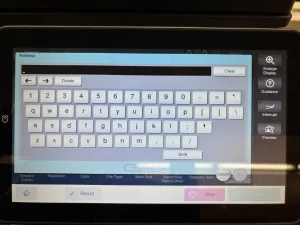
Enter email address.
-
You’ll receive an email from noreply@smcl.org with the subject line of “Message from KM_C361i”, unless you change the settings in “Name/Subject/Other.”
Scan to USB
-
Plug in the USB stick (FAT32 format) on the right side of the copier.
-
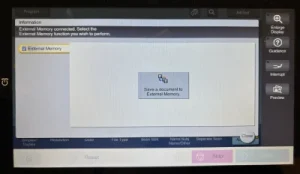
Tap on button that says, “Save a document to External Memory.”
-
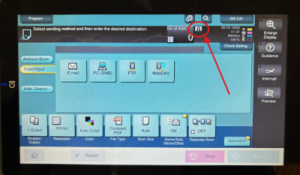
If you don’t see this button at first, tap on the tiny USB drive icon near the top of the screen.
Choose Options
-
Choose appropriate options (Resolution, Black & White vs. Color, 2-sided scanning, File Type)
-
Change the Name of the document in “Name/Subj Name/Other”
-
Next, determine how many pages you will be scanning:
-
Scan one page
-
Scan more than one page, to one file
-
Scan more than one page, to multiple files
-


Scan One Page
Now you have the choice of using the document feeder, or the glass bed scanner.
Document Feeder: Place the page face up in the document feeder and press "Start" button. The page will automatically be emailed or saved to USB drive.
Glass Flatbed: Place the page on glass face down and press "Start" button. The page will automatically be emailed or saved to USB drive.

Scan More Than One Page: to One File
Document Feeder: If you want to scan multiple letter-sized pages to one file, the easiest method is with the document feeder on the top of the machine. Place all pages face up in the top feeder and press "Start" button. All pages will automatically be emailed or saved to USB drive.
Glass Flatbed: If you have multiple odd shaped items to scan (i.e. ID card, receipts, etc.) to one file, use the glass flatbed.
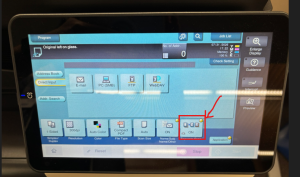
- Before scanning, click on the "Separate Scan" button. A yellow dot will indicate that the feature is activated.
- Place first page on glass face down and press "Start" button.
- Place second page on glass face down and press "Start" button.
- Repeat until all pages are scanned.
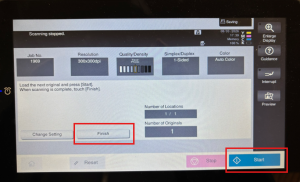
- When finished, press white "Finish" button.
- Press blue "Start" button to complete the transfer to email or to the USB drive.
Scan More Than One Page: to Multiple Files
Document Feeder: Place the page face up in the document feeder and press "Start" button. The page will automatically be emailed or saved to USB drive.
Glass Flatbed: Place the page on glass face down and press "Start" button. The page will automatically be emailed or saved to USB drive.
For USB Drive: After you've scanned your first page, click on the small USB drive icon near the top of the screen (not the button labeled "External Memory"). This will bring up the option to “Save a document to External Memory.” Repeat scanning process.
For Email: After you've scanned your first page, you'll have to repeat the process of tapping on the “Email” button and re-entering the email address for each additional scan.
